
Features for Administrators
INFO
When first setting up a Habitat instance, the administrator will be required to create a user account. This account will have access to all of the features that regular users do, in addition to the moderation features, and those described on this page. There exists only one administrator account for a Habitat. While it is possible to promote users to moderators, it is not possible to promote any other user to an administrator.
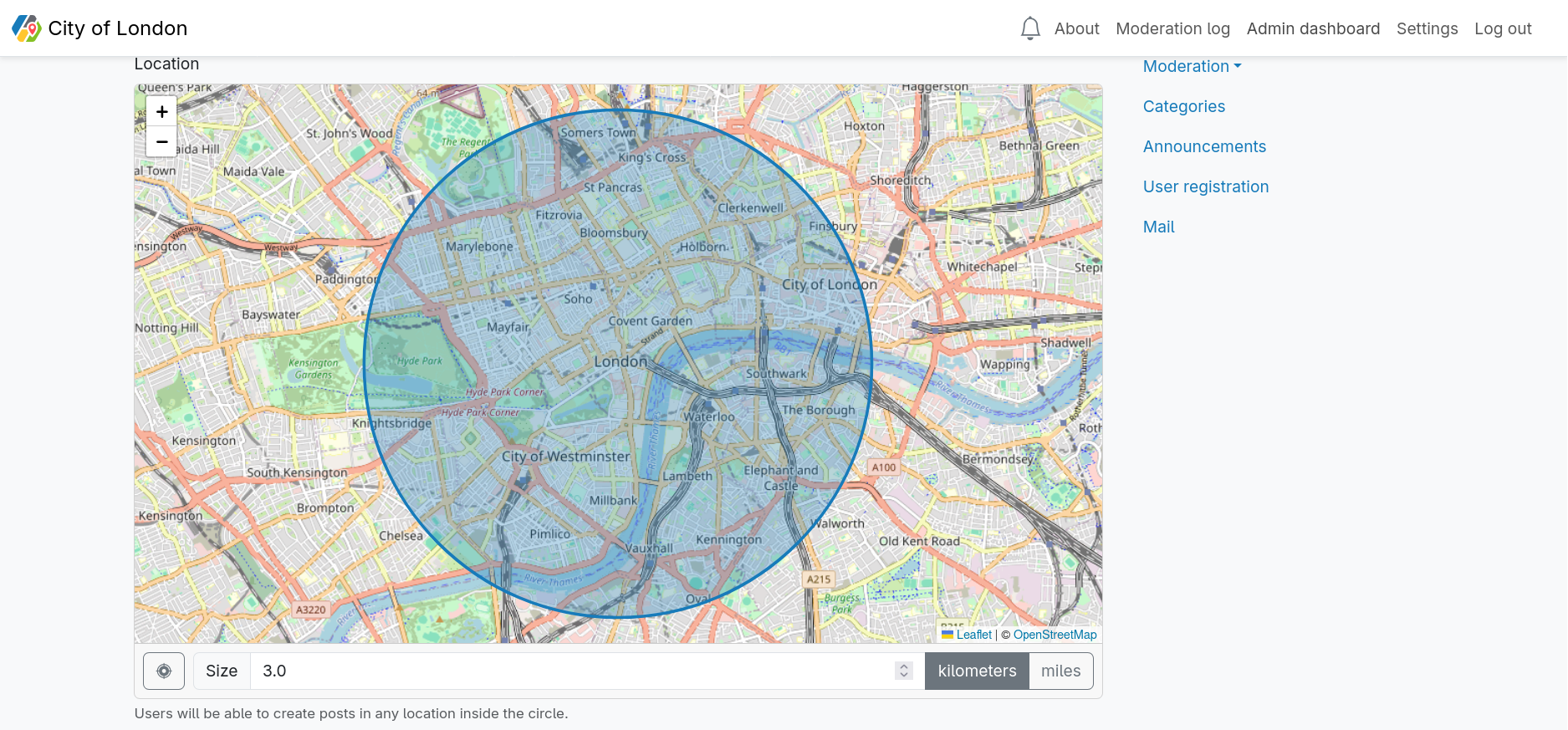
Setting a Location
The location for the Habitat instance can be set by clicking on the location map in the settings. When setting this, the administrator will also be required to set a size. Doing so will produce a circle. This circle is the perimeter of the Habitat instance. If a user provides a location when creating a post, that location will be required to be inside the perimeter.
The administrator will also be able to choose between kilometers and miles when configuring the perimeter. Changing this sets the default configuration for the Habitat instance. This is also true for the zoom of the map. The map will be displayed at the zoom level throughout the Habitat instance as chosen when the Habitat location is configured.
Setting a Language
The administrator can set the language of their Habitat. If you don't find your language in the list of options, this is because nobody has yet requested that this language be supported. If you would like your language to be supported, please create a new pull request, or a new issue with your language file, using an existing language file as a template.
Setting the Sidebar Content
A basic WYSIWYG editor is provided to display sidebar content. This content will be displayed on nearly every page of the Habitat instance. On a wide-screen browser, the sidebar will appear on the right side of the page. On a mobile device, the sidebar content will appear after clicking the hamburger menu.
Category Management
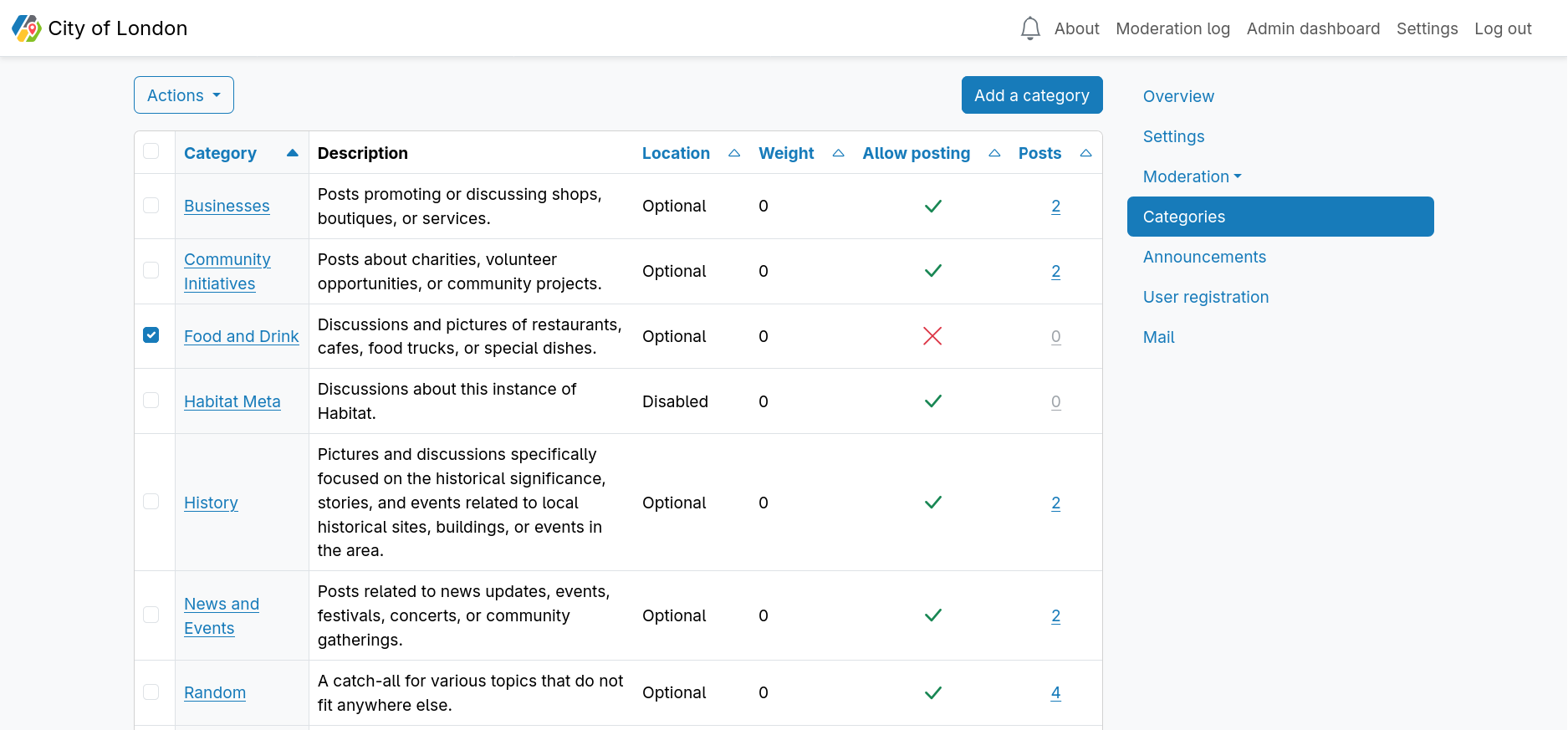
The categories index displays a table of all categories. This table is paginated at 10 categories per page by default, and can be changed to display 25, 50 or 100 categories per page.
Some columns of the categories table can be sorted in ascending or descending order by clicking the column heading.
The categories table displays the following information about each category:
| Column | Sortable | Description |
|---|---|---|
| Category | ✅ | The name of the category. |
| Description | ❌ | The category description as it appears at the top of the category index. |
| Location | ✅ | Indicates whether posts inside of the category are Optional, Required or Disabled. |
| Weight | ✅ | Categories with a low weight are ordered earlier than those with a high weight in the category list. Categories with the same weight are ordered alphabetically. |
| Allow posting | ✅ | Indicates whether or not posting has been disabled for a category. |
| Posts | ✅ | Displays the number of posts in a category. This links to the posts moderation index filtered by the category. |
Categories can be added, edited or deleted from the category management area.
Announcements
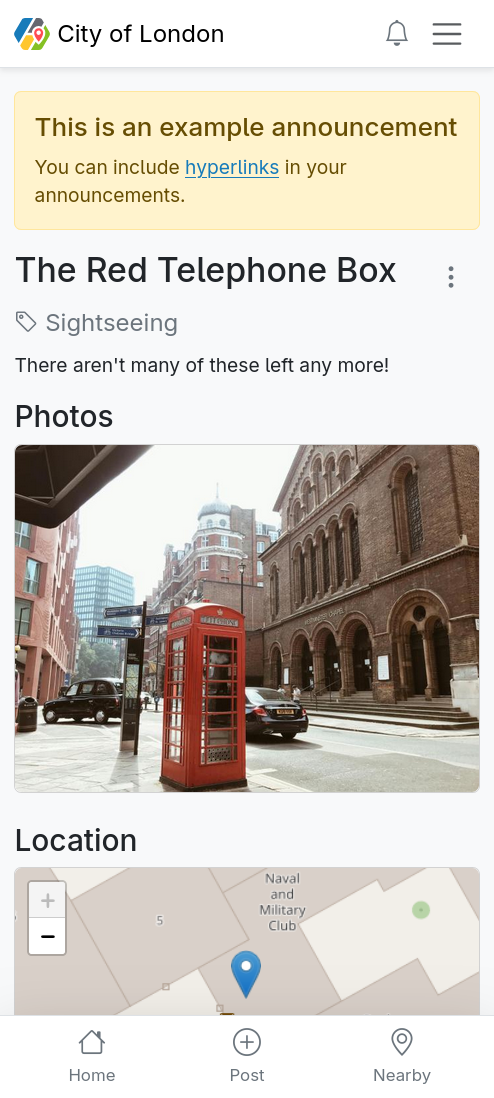
It is possible to configure announcements which appear at the top of every page of a Habitat instance. When configuring an announcement, the administrator will populate the following fields:
| Field | Description |
|---|---|
| Title | If populated, this will appear as a header in the announcement. |
| Content | If populated, this will appear as the body text within the announcement. |
| Collapse content | If both the title and content are populated, and this toggle is enabled, the announcement header will be visible by default, and the user will have to click the header to see the content. |
| Type | The announcement type controls the colour of the announcement. Options are Primary, Secondary, Warning, Info, Light |
| Show date | If populated, the announcement will not appear before the chosen date and time. |
| Hide date | If populated, the announcement will not appear after the chosen date and time. |
User Registration
By default, user registrations will be disabled on a new Habitat instance. This gives the administrator the time to configure their Habitat as they please before inviting users to sign up. It is only possible to enable registrations if the mail settings have been configured. This is because a verification email is sent to the user when registering for an account, though it is possible for an administrator to manually verify accounts. It's possible to disable new user registrations at any time.
Registration Challenge
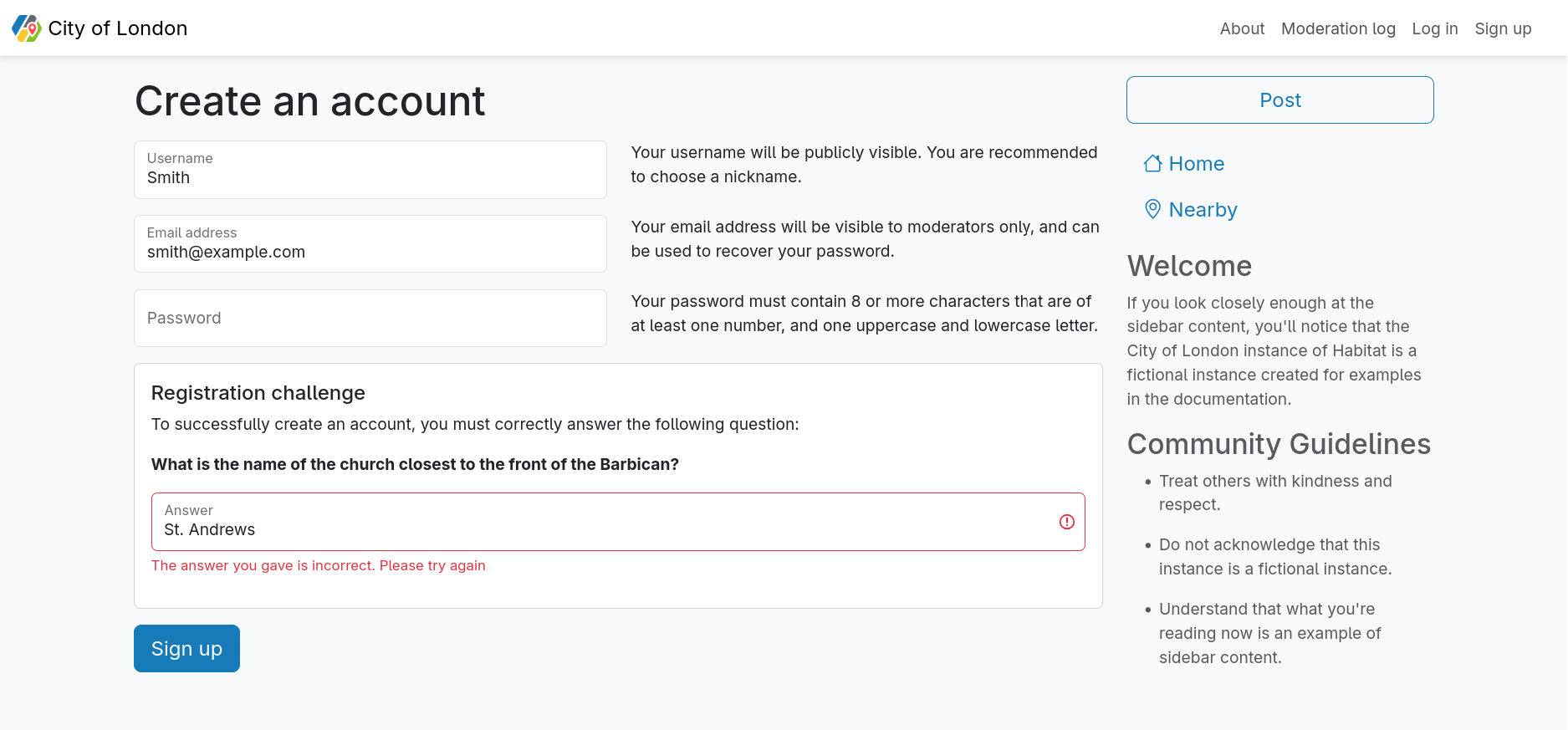
This functionality has been built to take advantage of local knowledge as an accessible alternative to using a CAPTCHA.
Administrators can create questions which the user must answer correctly in order to create an account. If creating multiple questions, the user will be required to answer one question at random when registering for an account.
When creating a registration challenge question, it is possible to create multiple correct answers. Correct answers are not case sensitive.
Mail configuration
Habitat requires a mail server to send account verification emails to ensure that users own the email addresses that they are signing up with. An email is also sent to the administrator's email account when there has been activity on the Habitat instance within a 24-hour window.
TIP
There exist mail providers with free tiers that work well with Habitat, such as Mailjet.
When configuring the mail settings, the administrator can populate the following fields:
| Field | Description |
|---|---|
| SMTP username | This is an optional field, as some locally hosted mail servers may not require credentials. |
| SMTP password | This is an optional field. Some mail providers will provide an API key instead of a password, and this would often be used in place of the SMTP password. |
| SMTP server | The URL of the mail provider server. |
| SMTP port | This would usually be 587 or 25 depending on the mail server's configuration. |
| Sender email address | All emails sent from this Habitat instance will be sent from this email address. |
| Test recipient email address | This field is not saved, but used to test the mail settings when clicking the Send a test email button. |
Local vs S3 storage options
It is possible to either store uploaded images on the local server or in an Amazon AWS S3 Bucket.
If you choose to host your Habitat instance on an AWS EC2 instance, it is recommended to use an S3 bucket in the same region as your instance to reduce hosting costs.
DANGER
This is an option provided during setup when first creating your Habitat instance. Once you've chosen, there is no functionality to switch between S3 and local storage.
Other
| Feature | Description |
|---|---|
| Habitat name | Setting a Habitat name overrides its default value of Habitat in page titles and the navigation bar. |
| Theme | Setting the theme to light or dark mode affects the the appearance of the Habitat for all users, but can be overridden on the user settings page. |
| Moderator promotion/demotion | It is possible for administrators to promote users to become moderators and demote moderators to regular users. |